Docker
*Shreyash Bhise | Aspiring Mern Stack Developer and DevOps enthusiast,
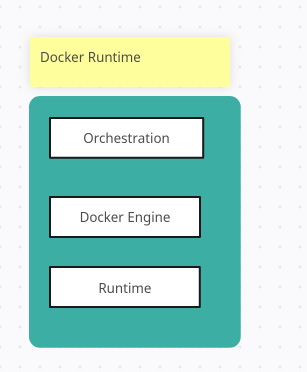
Docker Runtime: Basically allow us to start and stop containers.
Types of runtime:
Run c: So the role of this runtime is basically to work with the operating system and start and stops the containers.
Container d: The role of the container d is basically managing run c and it also help in managing containers but it does stuff like how to interact with your container with the network.
Docker Engine: Docker engine is something that we use to like interact with docker.
Orchestration: It allow us to manage container.
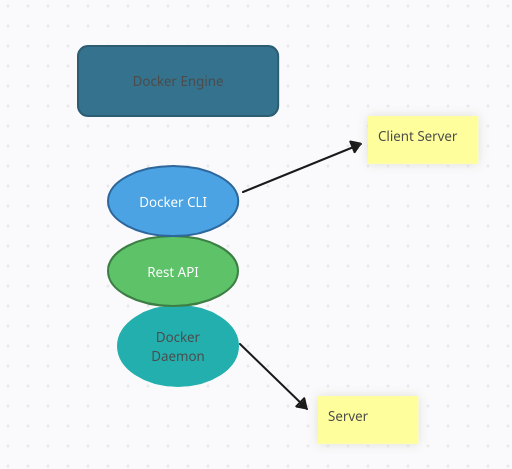
Docker CLI: Command line interrface that interact with docker daemon.
Rest API : As suggested by the name,it refer to a particular API that application utilize to interface or communicate with docker daemon. The docker daemon receives instruction from this API on how to operate within engine and architecture.
Docker Daemon: It is a background process that manage docker object such as the images,containers,volumes and networks. The docker daemons responsibility is to monitor and continuously handle API requests that are made of it.

Docker file : It's just a file that contains all the instructions and everything
Image: you can also create docker image using something called docker file.
Container: Container is a running instance of a image.
Docker registries
A Docker registry stores Docker images. Docker Hub is a public registry that anyone can use, and Docker is configured to look for images on Docker Hub by default. You can even run your own private registry.
When you use the docker pull or docker run commands, the required images are pulled from your configured registry. When you use the docker push command, your image is pushed to your configured registry. Docker objects
When you use Docker, you are creating and using images, containers, networks, volumes, plugins, and other objects. This section is a brief overview of some of those objects.
Docker Desktop
Docker Desktop is an easy-to-install application for your Mac, Windows or Linux environment that enables you to build and share containerized applications and microservices. Docker Desktop includes the Docker daemon (dockerd), the Docker client (docker), Docker Compose, Docker Content Trust, Kubernetes, and Credential Helper. For more information, see Docker Desktop.
INSTALL DOCKER
A very detailed instructions to install Docker are provide in the below link
https://docs.docker.com/get-docker/
For Demo,
You can create an Ubuntu EC2 Instance on AWS and run the below commands to install docker.
  sudo apt update
  sudo apt install docker.io -y
Start Docker and Grant Access
A very common mistake that many beginners do is, After they install docker using the sudo access, they miss the step to Start the Docker daemon and grant acess to the user they want to use to interact with docker and run docker commands.
Always ensure the docker daemon is up and running.
A easy way to verify your Docker installation is by running the below command
docker run hello-worldIf the output says:
  docker: Got permission denied while trying to connect to the Docker daemon socket at unix:///var/run/docker.sock: Post "http://%2Fvar%2Frun%2Fdocker.sock/v1.24/containers/create": dial unix /var/run/docker.sock: connect: permission denied.
  See 'docker run --help'.
This can mean two things,
Docker deamon is not running.
Your user does not have access to run docker commands.
Start Docker daemon
You use the below command to verify if the docker daemon is actually started and Active
sudo systemctl status docker
If you notice that the docker daemon is not running, you can start the daemon using the below command
sudo systemctl start docker
Grant Access to your user to run docker commands
To grant access to your user to run the docker command, you should add the user to the Docker Linux group. Docker group is create by default when docker is installed.
sudo usermod -aG docker ubuntu
In the above command ubuntu is the name of the user, you can change the username appropriately.
NOTE: : You need to logout and login back for the changes to be reflected.
Docker is Installed, up and running
Use the same command again, to verify that docker is up and running.
docker run hello-world
Output should look like:
    ....
    ....
    Hello from Docker!
    This message shows that your installation appears to be working correctly.
    ...
    ...
Great Job, Now start with the examples folder to write your first Dockerfile and move to the next examples. Happy Learning :)
Clone this repository and move to example folder
    git clone https://github.com/iam-veeramalla/Docker-Zero-to-Hero
    cd  examples
Login to Docker [Create an account with https://hub.docker.com/]
docker login
    Login with your Docker ID to push and pull images from Docker Hub. If you don't have a Docker ID, head over to https://hub.docker.com to create one.
    Username: shreyashbhise
    Password:
    WARNING! Your password will be stored unencrypted in /home/ubuntu/.docker/config.json.
    Configure a credential helper to remove this warning. See
    https://docs.docker.com/engine/reference/commandline/login/#credentials-store

    Login Succeeded
Build your first Docker Image
You need to change the username accoringly in the below command
docker build -t shreyashbhise/my-first-docker-image:latest .
Output of the above command
        Sending build context to Docker daemon  992.8kB
        Step 1/6 : FROM ubuntu:latest
        latest: Pulling from library/ubuntu
        677076032cca: Pull complete
        Digest: sha256:9a0bdde4188b896a372804be2384015e90e3f84906b750c1a53539b585fbbe7f
        Status: Downloaded newer image for ubuntu:latest
         ---> 58db3edaf2be
        Step 2/6 : WORKDIR /app
         ---> Running in 630f5e4db7d3
        Removing intermediate container 630f5e4db7d3
         ---> 6b1d9f654263
        Step 3/6 : COPY . /app
         ---> 984edffabc23
        Step 4/6 : RUN apt-get update && apt-get install -y python3 python3-pip
         ---> Running in a558acdc9b03
        Step 5/6 : ENV NAME World
         ---> Running in 733207001f2e
        Removing intermediate container 733207001f2e
         ---> 94128cf6be21
        Step 6/6 : CMD ["python3", "app.py"]
         ---> Running in 5d60ad3a59ff
        Removing intermediate container 5d60ad3a59ff
         ---> 960d37536dcd
        Successfully built 960d37536dcd
        Successfully tagged shreyashbhise/my-first-docker-image:latest
Verify Docker Image is created
docker images
Output
    REPOSITORY                         TAG       IMAGE ID       CREATED          SIZE
    shreyashbhise/my-first-docker-image   latest    *******   26 seconds ago   467MB
Run your First Docker Container
docker run -it shreyashbhise/my-first-docker-image
Output
Hello World
Push the Image to DockerHub and share it with the world
docker push shreyashbhise/my-first-docker-image
Output
    Using default tag: latest
    The push refers to repository [docker.io/shreyashbhise/my-first-docker-image]
    896818320e80: Pushed
    b8088c305a52: Pushed
    69dd4ccec1a0: Pushed
    c5ff2d88f679: Mounted from library/ubuntu
    latest: digest: sha256:6e49841ad9e720a7baedcd41f9b666fcd7b583151d0763fe78101bb8221b1d88 size: 1157
You must be feeling like a champ already
Docker runtime refers to the software environment in which Docker containers run. It is responsible for executing and managing containers on a host system. Docker supports different container runtimes, with the most common one being the Docker Engine runtime. Here are some details about Docker runtimes and their types:
1. Docker Engine Runtime (Containerd):
Default Runtime: Docker Engine uses Containerd as the default container runtime. Containerd is an industry-standard container runtime that provides the basic functionality needed to run containers.
Responsibilities: Containerd manages the low-level container operations, such as creating, starting, stopping, and deleting containers. It interfaces with the Linux kernel and is responsible for container isolation and resource management.
Compatibility: Containerd is compatible with OCI (Open Container Initiative) standards, ensuring that containers created with Docker can be run with other OCI-compliant runtimes.
2. Docker Runtime (Docker-runc):
Historical Default: Before the adoption of Containerd, Docker used Docker-runc as its default runtime.
Responsibilities: Docker-runc is a lightweight runtime that uses OCI specifications to run containers. It interacts directly with the Linux kernel to manage container processes.
3. Other Runtimes:
Docker allows you to use alternative container runtimes by configuring the runtime option. Some other runtimes include:
runC: An implementation of the OCI runtime specification, similar to Docker-runc.
CRI-O: A runtime optimized for Kubernetes environments, following OCI standards.
containerd-shim: A lightweight process that facilitates communication between containerd and containers.
4. Kata Containers:
- While not a Docker runtime, Kata Containers is a technology that combines the security of virtual machines with the lightweight nature of containers. It provides an alternative approach to container isolation and can be integrated with Docker or Kubernetes.
Choosing a runtime often depends on factors like security requirements, performance, and compatibility with existing container orchestrators. For most use cases, Docker Engine with Containerd as the default runtime is suitable. However, other runtimes like CRI-O and Kata Containers may be preferred in specific scenarios.
Docker Engine: Docker Engine and Docker Desktop are related but distinct components in the Docker ecosystem.
Docker Engine: Docker Engine is the core component of Docker, responsible for running containers on a host system. It consists of the Docker Daemon (the background service) and the Docker CLI (the command-line interface). Docker Engine can be installed on various operating systems, including Linux, Windows, and macOS. When you interact with Docker via the command line, you're using the Docker CLI to communicate with the Docker Daemon, which manages containers.
Docker Desktop:
"runc" and "containerd" are two critical components in the Docker and container ecosystem, but they serve different purposes and have distinct roles. Here's a comparison of the two:
runc:
Low-Level Container Runtime: runc is an open-source, low-level container runtime that implements the Open Container Initiative (OCI) specification for container runtimes. It's designed to create and manage containers by working directly with container images and the host operating system's kernel.
Standards-Compliant: runc focuses on adhering to container runtime standards, which makes it a building block for higher-level container platforms and tools. It provides the basic functionality needed to create and run containers but lacks features for managing container lifecycles.
Simple and Lightweight: runc is known for its simplicity and lightweight nature. It doesn't have built-in features for orchestrating containers or managing container images. Instead, it is typically used by higher-level container runtimes or container orchestration platforms like Docker, containerd, Kubernetes, and others.
containerd:
Container Runtime Supervisor: containerd is an industry-standard container runtime supervisor. It serves as an intermediate layer between higher-level container management tools (like Docker) and low-level container runtimes (like runc).
Management and Orchestration: containerd handles various container management tasks, including image distribution, container execution, network management, and storage. It provides a more comprehensive set of features compared to runc.
Interoperability: containerd adheres to OCI standards, which means it can work with any OCI-compliant runtime like runc. However, containerd is more feature-rich than runc and is designed to simplify container management for higher-level tools and orchestration platforms.
In summary, while both runc and containerd are essential components in the container ecosystem, they serve different roles. runc is a low-level container runtime that directly interacts with the host operating system's kernel to create and run containers, while containerd is a higher-level container runtime supervisor that provides additional management and orchestration features, making it more suitable for use by container platforms and orchestrators like Docker, Kubernetes, and others.


