Terraform : Provision VPC using Terraform

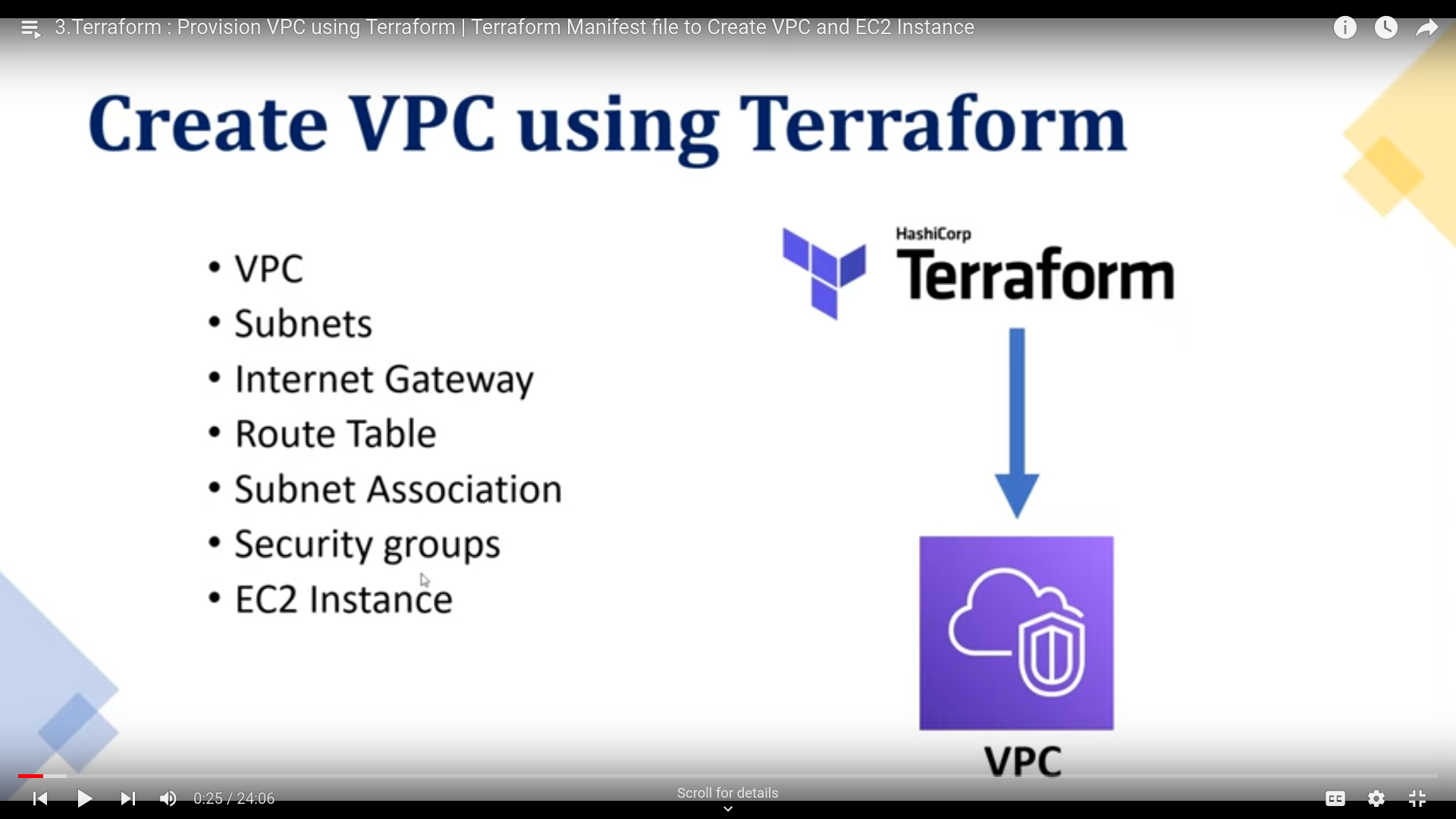

Certainly! Let's go through each step in your Terraform configuration to understand what each section is doing.
AWS Provider Configuration:
 provider "aws" {
     region = "us-east-1"
 }
This section configures the AWS provider with the specified region, in this case, "us-east-1".
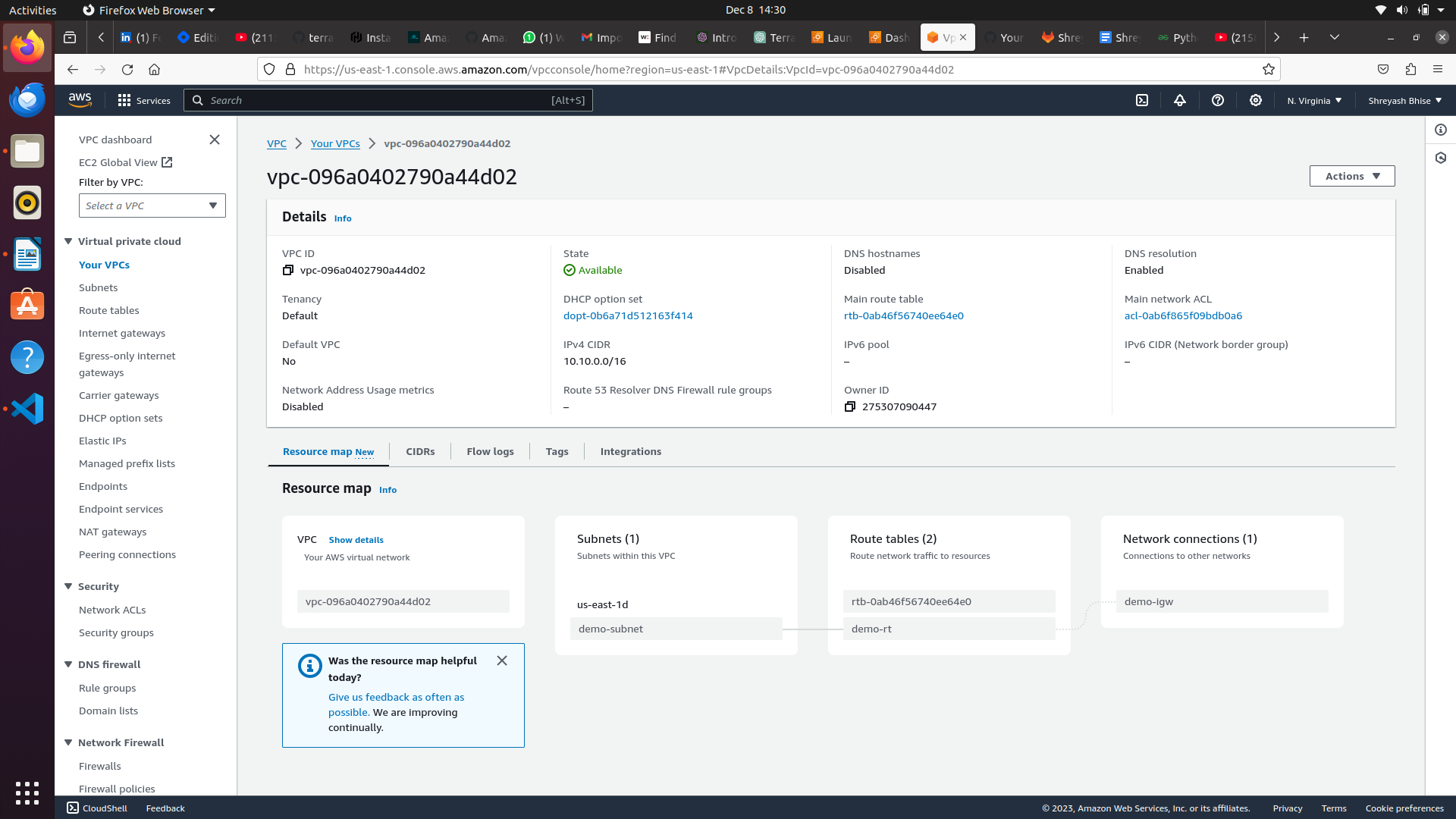
AWS VPC (Virtual Private Cloud) Configuration:
 resource "aws_vpc" "demo-vpc" {
     cidr_block = "10.10.0.0/16"
 }
This creates a VPC with the specified CIDR block (IP address range).
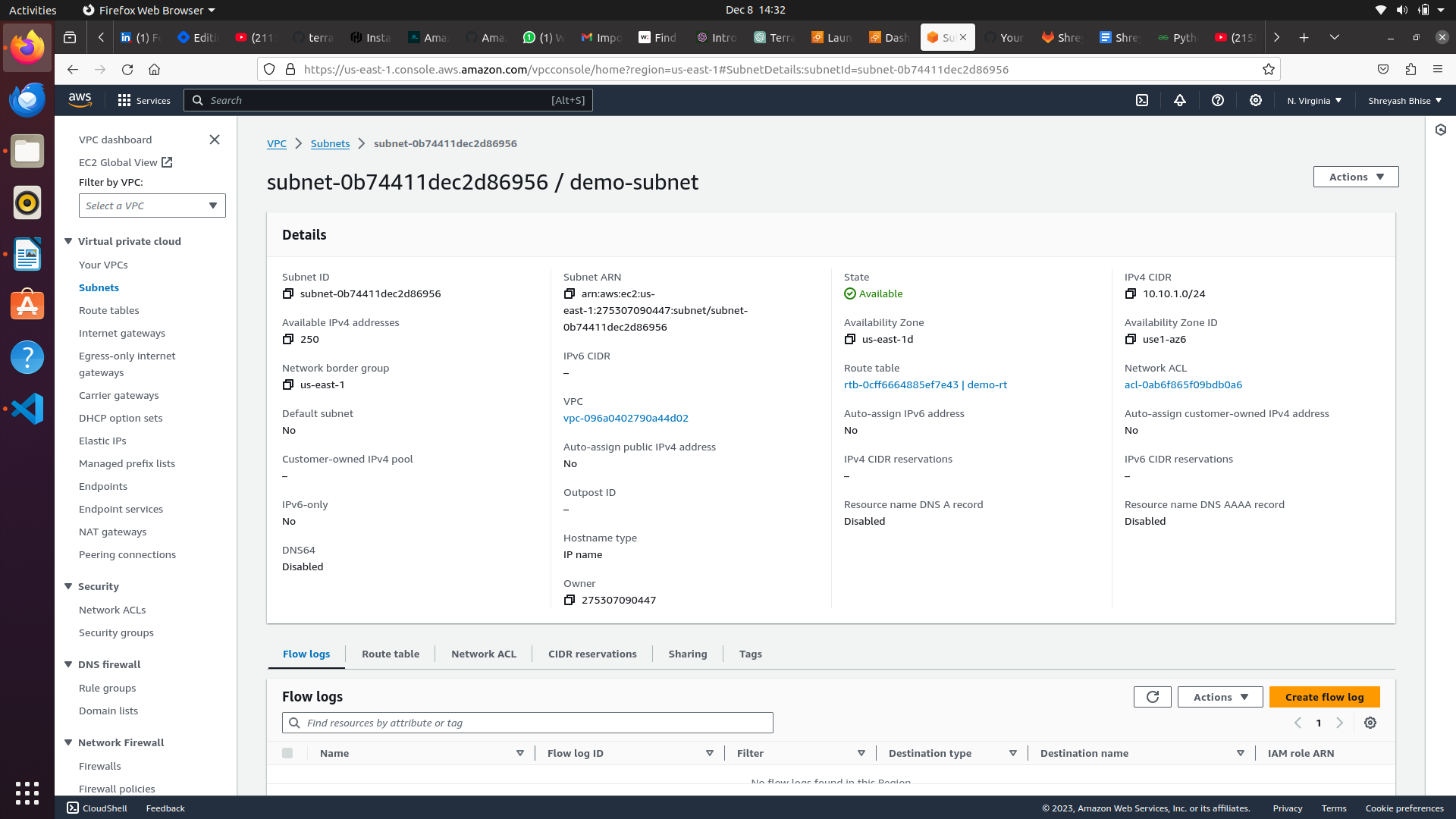
AWS Subnet Configuration:
 resource "aws_subnet" "demo-subnet" {
     vpc_id     = aws_vpc.demo-vpc.id
     cidr_block = "10.10.1.0/24"

     tags = {
         Name = "demo-subnet"
     }
 }
This creates a subnet within the previously created VPC with a specified CIDR block.
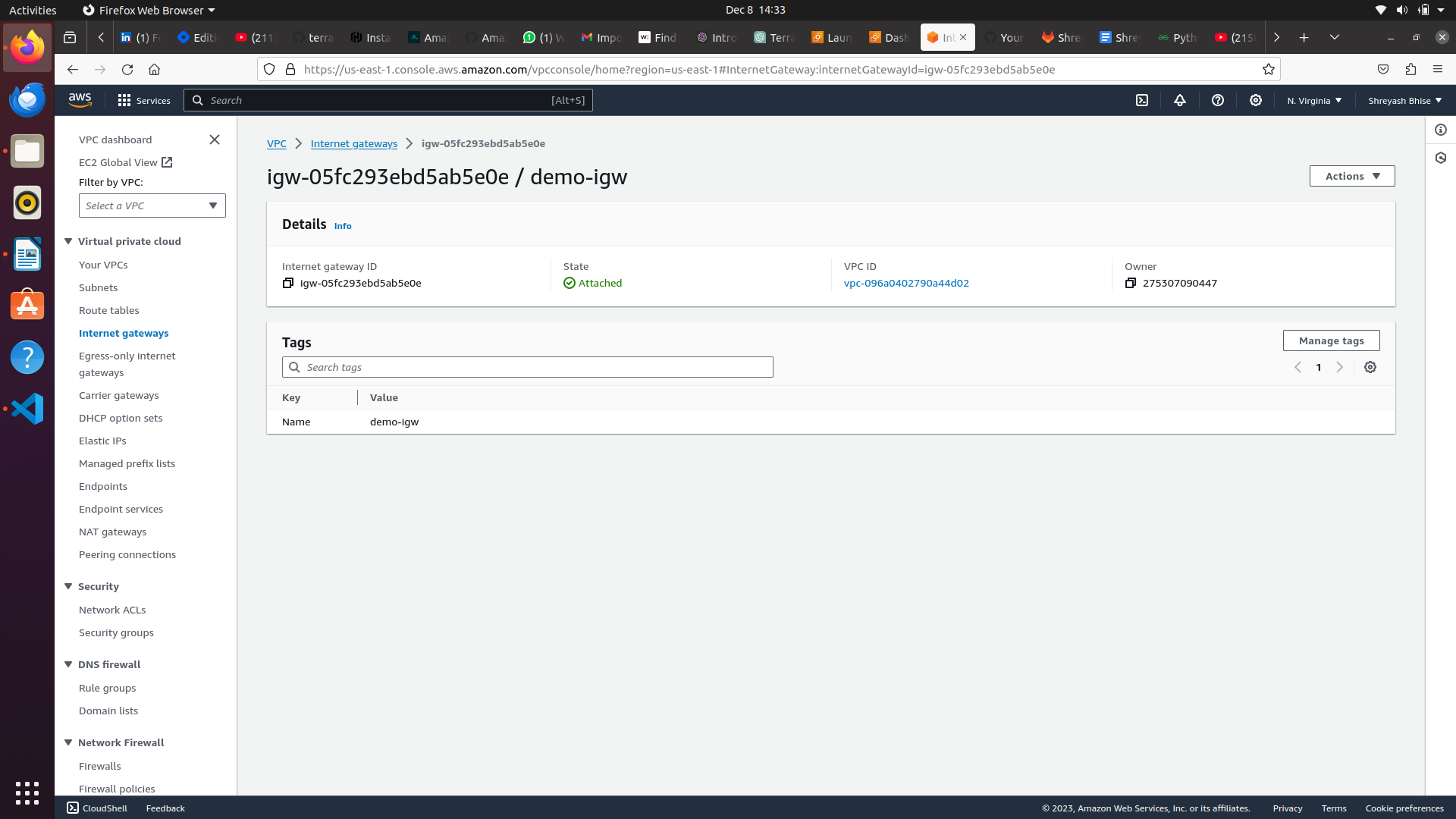
AWS Internet Gateway Configuration:
 resource "aws_internet_gateway" "demo-igw" {
     vpc_id = aws_vpc.demo-vpc.id

     tags = {
         Name = "demo-igw"
     }
 }
This creates an internet gateway and associates it with the VPC.
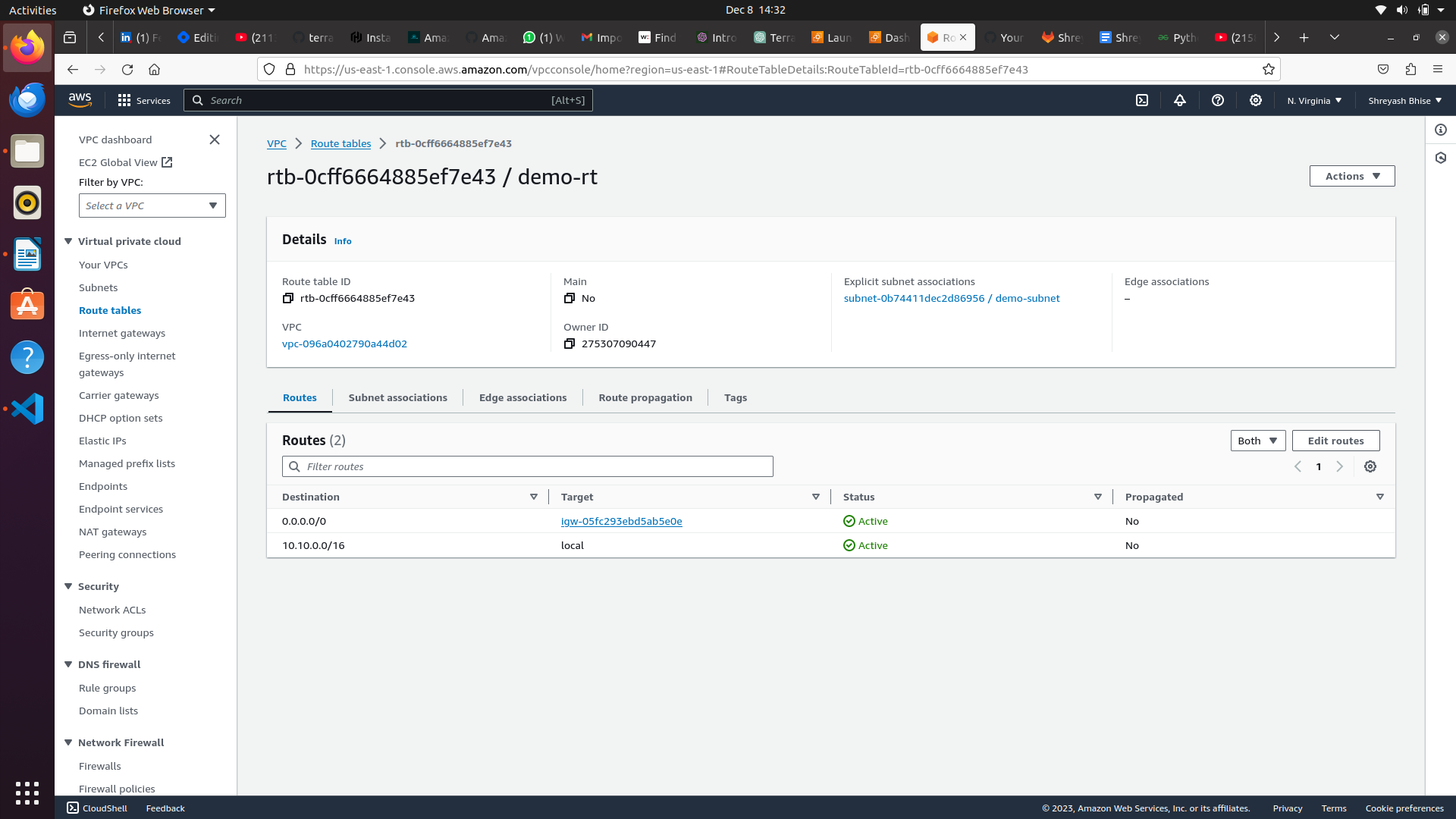
AWS Route Table Configuration:
 resource "aws_route_table" "demo-rt" {
     vpc_id = aws_vpc.demo-vpc.id

     route {
         cidr_block = "0.0.0.0/0"
         gateway_id = aws_internet_gateway.demo-igw.id
     }

     tags = {
         Name = "demo-rt"
     }
 }
This creates a route table and defines a default route that directs traffic to the internet through the internet gateway.
AWS Route Table Association:
 resource "aws_route_table_association" "demo-rt-association" {
     subnet_id      = aws_subnet.demo-subnet.id
     route_table_id = aws_route_table.demo-rt.id
 }
This associates the previously created subnet with the route table.
AWS Security Group Configuration:
 resource "aws_security_group" "demo-vpc-sg" {
     name        = "demo-vpc-sg"
     vpc_id      = aws_vpc.demo-vpc.id

     ingress {
         from_port        = 22
         to_port          = 22
         protocol         = "tcp"
         cidr_blocks      = ["0.0.0.0/0"]
         ipv6_cidr_blocks = ["::/0"]
     }

     egress {
         from_port        = 0
         to_port          = 0
         protocol         = "-1"
         cidr_blocks      = ["0.0.0.0/0"]
         ipv6_cidr_blocks = ["::/0"]
     }

     tags = {
         Name = "allow_tls"
     }
 }
This creates a security group that allows incoming SSH traffic (port 22) from any source and allows all outgoing traffic. It is associated with the VPC.
AWS EC2 Instance Configuration:
 resource "aws_instance" "example" {
     ami                    = "xyz"
     key_name               = "xyz"
     subnet_id              = aws_subnet.demo-subnet.id
     instance_type          = "t2.micro"
     vpc_security_group_ids = [aws_security_group.demo-vpc-sg.id]
 }
This creates an EC2 instance in the specified subnet, using the specified Amazon Machine Image (AMI), key pair, instance type, and security group.
This Terraform configuration sets up a basic AWS infrastructure with a VPC, subnet, internet gateway, route table, security group, and an EC2 instance. It's a foundational setup for a simple network architecture in AWS.
Initialize Your Configuration: Run the following command to initialize your Terraform working directory. This downloads the necessary provider plugins and sets up your environment.
terraform initReview the Changes (Optional): You can run the following command to see what changes Terraform will apply without actually applying them. This is a dry run and helps you review the planned changes.
terraform planApply the Configuration: If everything looks good after reviewing the changes, apply the configuration to create or update resources. Terraform will prompt you to confirm the changes.
terraform apply
If you want to automatically approve changes without being prompted, you can use the -auto-approve flag:
terraform apply -auto-approveDestroy Resources (Optional): If you want to destroy the resources created by Terraform, you can run:
terraform destroy
As with the apply command, you can use the -auto-approve flag to automatically approve the destruction of resources:
terraform destroy -auto-approve
About the author
*Shreyash Bhise | Aspiring Mern Stack Developer and DevOps enthusiast,
Comments
Join the discussionNo comments yet. Be the first to comment.


